

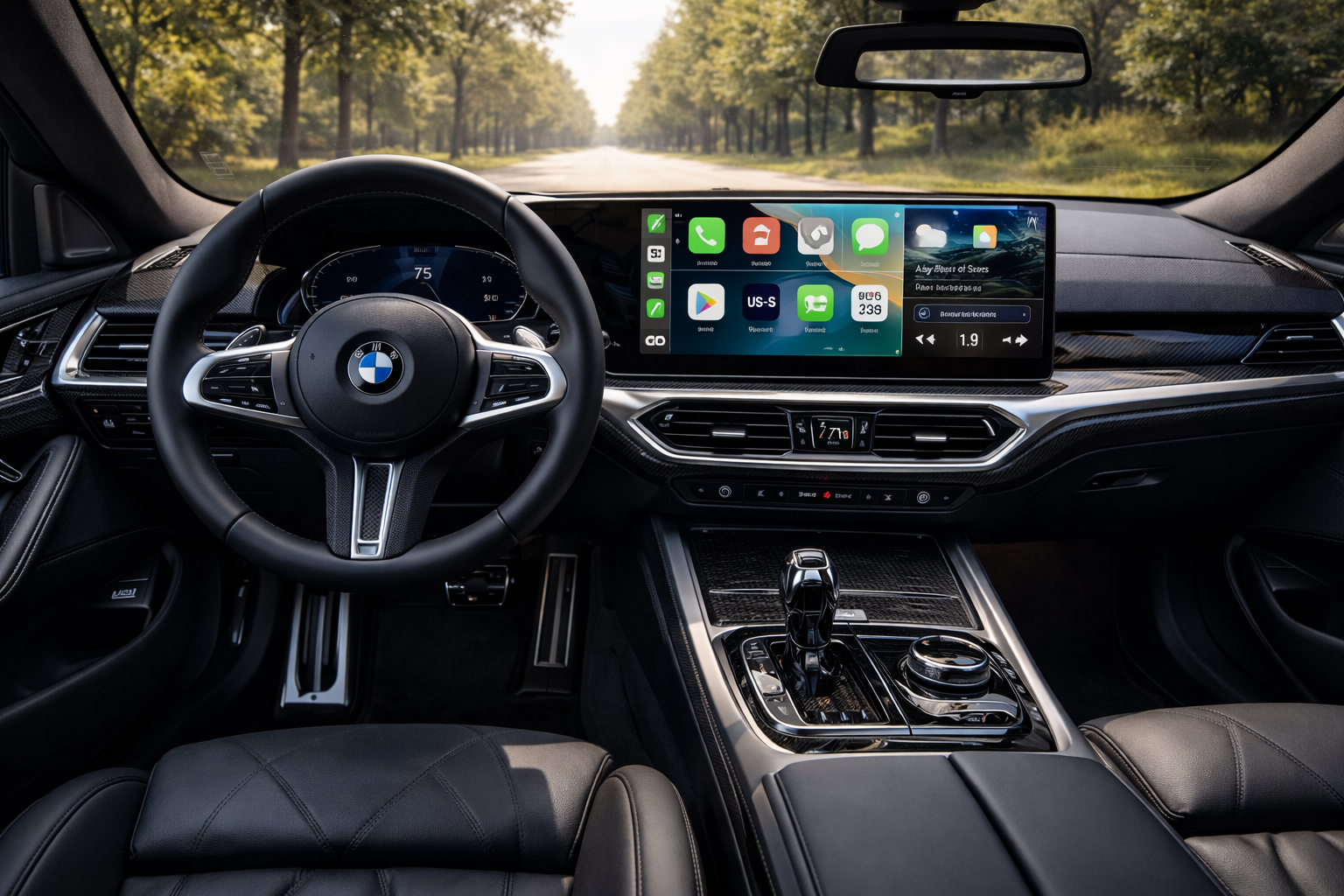
2026 COMPLETE GUIDE · BMW X3 · iDrive 6 / 7 / 8 / OS9
BMW X3 ANDROID AUTO —
EVERY GENERATION COVERED
✦ F25 · G01 · G45 | ✓ No Coding | 🛡 Warranty Safe | ⚡ 15-Min Install
THE PROBLEM
Your X3 Deserves Better Than a Phone Holder
The BMW X3 gets almost everything right — the ride, the cabin, the way it handles a long motorway run. But climb in with an Android phone and the frustration hits immediately.
BMW built iDrive around Apple's ecosystem for years. Most X3 models shipped with CarPlay built in, leaving Android users running Google Maps on a separate phone screen while a perfectly good iDrive display does half its job. A phone mount here, Bluetooth audio there — it works, technically, but it looks improvised in a car that's supposed to feel premium.
In 2026, there are real solutions for every X3 generation — from the old F25 to the brand-new G45. This guide covers all of them, honestly, without pushing you towards anything you don't need.
"Drove my 2020 X3 for two years with Google Maps on a phone holder. Felt embarrassing in a car this good. Sorted it properly in an afternoon — wish I'd done it sooner."
— James K. · 2020 BMW X3 xDrive30i · G01 owner
STEP ONE
Which X3 Do You Have?
This is the only question that matters before anything else. Every X3 generation has a completely different infotainment setup — and different solutions.
| Generation | Years | System | Android Auto Status |
|---|---|---|---|
| F25 | 2011–2017 | CIC / NBT | ❌ No factory CarPlay |
| G01 early | 2018–2020 | NBT EVO iDrive 6 | ⚠️ CarPlay only — AA needs activation |
| G01 facelift | 2021–2024 | iDrive 7 | ✅ Available via dealer update |
| G45 new X3 | 2024–2025 | iDrive 8 / OS9 | ✅ Standard from factory |
YOUR OPTIONS
Every Route Compared — Honestly
There's no single answer for every X3. Here's what actually works depending on your generation, budget, and how much you want to touch the car.
Option A — Phone Mount + Bluetooth
Free. Works. But you're running your phone screen while the perfectly good iDrive display does nothing. Phone battery drains fast, no iDrive integration, and it looks improvised in a premium car. Most X3 owners try this first and spend months annoyed before actually fixing it.
Option B — Decoder Module
For F25 and early G01 X3 models without factory CarPlay. A Decoder module taps into the LVDS cable between the head unit and screen — adds CarPlay and Android Auto directly to the factory display without replacing anything. Install is 2–3 hours, involves removing trim panels, doable DIY with the right guide.
Option C — Android AI Box
For 2018–2024 G01 X3 owners with factory wireless CarPlay. An Android AI Box plugs directly into the CarPlay USB port and runs full Android 13 on your factory iDrive screen. Android Auto, Google Maps, Spotify, YouTube, Netflix. No wiring. No disassembly. 15 minutes. Important: BMW uses a proprietary closed CarPlay channel — generic AI boxes built for other brands won't activate on X3 hardware.
Option D — Full Android Screen Replacement
Replacing the factory display with a 10.25" or 12.3" Android screen gives you the most complete upgrade — larger screen, full Android 13, CarPlay, Android Auto, and touch control. Most involved option. Dashboard disassembly required. Worth it only if you also want a bigger screen, not just Android Auto.
BEFORE YOU BUY
3 Things to Check First
Getting the wrong solution for your X3 is the most common mistake. Takes two minutes to check.
Is your CarPlay wired or wireless?
This single check determines your fastest route.
- Wireless CarPlay active → Go straight to an Android AI Box. 15 minutes, no disassembly.
- Wired CarPlay only → Wireless CarPlay needs to be activated first via a BMW coding session, then an AI Box works on top.
- No CarPlay at all → Decoder module or screen replacement.
Are you using the right USB port?
G01 X3 models have two USB-A ports in the centre console armrest — one is a CarPlay data port, one is charge-only. They look identical. The AI Box only activates in the data port. On most G01 models, the correct port sits closer to the gear selector. Plugging into the charge-only port produces zero response — no error, nothing. This is the single most common reason people think their device isn't working.
Don't assume year = features
Production dates matter more than model years on the X3. Some late-2018 G01 models shipped wired-only CarPlay. Some early-2021 models shipped without Live Cockpit Professional, which affects Android Auto availability. Always confirm your exact setup before ordering.
RECOMMENDED SOLUTION
The Plug-and-Play Route for 2018–2024 X3
If your X3 has factory wireless CarPlay active, the Carlinkit MMB Box is the cleanest upgrade available. Full Android 13 runs on the box's own Qualcomm chip — completely independent of your phone. Google Maps, YouTube, Netflix, and the full Play Store on your factory iDrive screen.
✦ Wireless Android Auto + CarPlay — no cables, no phone needed
✦ YouTube, Netflix, Spotify — full Google Play Store access
✦ Triple-mode GPS — accurate in tunnels and underground car parks
✦ One-tap floating button — returns to iDrive instantly
✦ Steering wheel controls, iDrive knob, reverse camera — all intact
✦ 2-year warranty · 30-day money-back guarantee
| Feature | Factory Android Auto | With MMB Box ★ |
|---|---|---|
| Google Maps / Waze | ✅ | ✅ |
| Spotify / Apple Music | ✅ | ✅ |
| YouTube / Netflix | ❌ Blocked | ✅ Native |
| Full Google Play Store | ❌ | ✅ |
| Runs Without Phone | ❌ | ✅ |
| Phone Battery Drain | High | None |
| Split-Screen Multitasking | ❌ | ✅ |
HONEST ASSESSMENT
Pros & Cons
✓ What Works Exceptionally Well
- True plug-and-play — no tools, no coding, no dealer
- Full Android 13: Maps, YouTube, Netflix, Play Store
- Runs on its own chip — phone battery irrelevant
- One-tap toggle — iDrive always accessible
- Zero warranty impact — external USB, no ECU changes
- Works on iDrive 6, 7, 8 and G45 curved display
! Limitations Worth Knowing
- Requires factory wireless CarPlay — wired-only needs activation first
- F25 (pre-2018) needs Decoder module first
- Streaming needs data source — hotspot or optional SIM
- Video while moving locked by default (road safety)
FAQ
Common Questions
Will this void my BMW X3 warranty?
No. The Android AI Box is an external USB accessory — zero permanent changes to the ECU, wiring, or software. CE, FCC, and RoHS certified. Unplug it and your X3 is exactly as BMW built it. Full screen replacements are different — those involve hardware modifications.
Do I need coding to install?
No coding needed for the AI Box on G01 X3 models with wireless CarPlay already active. Plug in, pair via CarPlay on your phone, done in 15 minutes. Decoder modules for F25 and early G01 are also typically coding-free, though some configurations may need an AUX audio path activated — check with the seller.
My X3 only has wired CarPlay — what do I do?
Two-step process. First, have wireless CarPlay activated via a BMW coding session (available remotely from specialists, 30–60 minutes). Once wireless CarPlay is live, an Android AI Box works on top. Alternatively, a Decoder module handles everything in one installation without needing wireless CarPlay first.
Which iDrive versions are compatible?
CIC / NBT (F25, 2011–2017): Decoder module or Android Screen — no factory CarPlay.
NBT EVO iDrive 6 (G01, 2018–2020): AI Box works if wireless CarPlay is active.
iDrive 7 (G01 facelift, 2021–2024): AI Box compatible, wireless CarPlay standard.
iDrive 8 / OS9 (G45, 2024–2025): AI Box compatible including the curved widescreen display.
Will Android Auto lag or drop connection?
Unlike phone-mirroring dongles where your phone does all the work, the AI Box runs its own Qualcomm processor. Performance is independent of your phone's battery or signal. GPS uses triple-mode positioning (GPS + GLONASS + BeiDou) — it maintains accuracy in tunnels and underground car parks where phone-dependent Android Auto frequently loses signal. Boot time after first pairing drops to under 20 seconds, and reconnection is automatic every start.
Will iDrive still work normally after installing?
Completely. The Android system runs alongside iDrive, not instead of it. A floating button sits on screen at all times — one tap returns you to factory iDrive instantly. ConnectedDrive, climate, vehicle settings, reverse camera, and radio all remain fully accessible.
Ready to Sort Your X3?
Go to iDrive → Settings → Connections → Apple CarPlay.
If it says "Wireless" — you're ready to order.
Have questions about your specific X3? Contact us →