

BMW X3 2017 Android Auto:
Add It Without Replacing Your iDrive
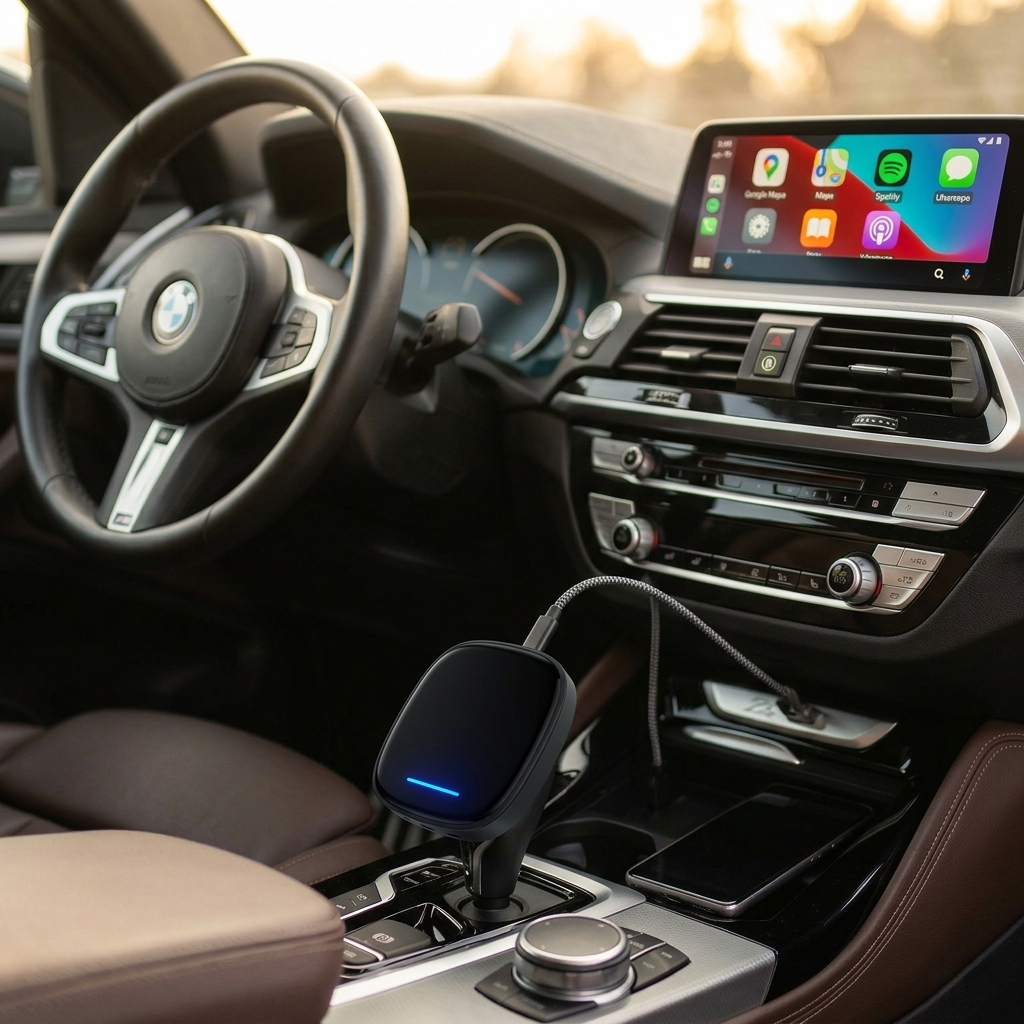
The 2017 X3 shipped without Android Auto — but a non-invasive AI box can add it wirelessly in under five minutes, leaving your iDrive, audio, and dashboard completely intact.
Why Doesn't the 2017 X3 Have Android Auto?
This is the most common question we get from X3 owners, and the answer is straightforward: BMW simply did not license Android Auto for the hardware in these vehicles.
- F25 chassis (2011–2017, most 2017 models): Runs iDrive 4 with the NBT head unit. Neither Android Auto nor CarPlay was included — this generation pre-dates BMW's smartphone integration rollout entirely.
- G01 chassis (late 2017 production onward, primarily 2018 MY): Introduced iDrive 6.0 (EVO) with wired Apple CarPlay as standard. Still no Android Auto.
- BMW didn't add Android Auto to any model until 2019, and even then many owners required a paid Software Upgrade to unlock it.
The bottom line
If your X3 shows a USB port and an iDrive screen but won't recognise your Android phone — that's by design, not a fault. The hardware is capable; it's a licensing and software restriction.
Step 1 — Identify Your iDrive System
Before purchasing an adapter, confirm which head unit you have. This determines which AI box is compatible and how the connection works.
Most 2017 F25 Models
- Vertical-list menu with an orange-tinted background
- Round iDrive controller — no touch surface on top
- No factory CarPlay or Android Auto
Early G01 (Late 2017+)
- Grid-tile home screen, swipeable left and right
- iDrive controller has a flat touch-sensitive surface on top
- Factory Apple CarPlay included (wired)
⚡ Quick check
If your iDrive controller knob has a flat, touch-sensitive top surface, you almost certainly have the EVO (G01) system — and the widest range of AI box options available to you.
The Non-Invasive Fix: Wireless Android Auto AI Box
Rather than pulling apart your dashboard or spending hundreds on a screen swap, a plug-in AI box adds Android Auto wirelessly — using your existing iDrive screen, speakers, and rotary controller.
Here's how it works: the adapter plugs into your car's factory USB port and acts as a wireless bridge between your Android phone and the iDrive screen. On EVO systems with CarPlay, it uses that CarPlay channel to stream Android Auto. For F25/NBT systems without CarPlay, specific TBOX-type adapters can add the capability independently — confirm compatibility with the product listing before purchasing.
Why owners prefer this approach
- iDrive stays completely intact — press a button to open Android Auto, press again to return to native BMW menus
- The rotary controller works inside Google Maps — safer than reaching for a touchscreen while driving
- Audio stays on the factory system — the digital signal travels over the original USB path, so there is no change to sound quality
- USB-powered — no batteries, no charging, works automatically every time you start the car
Step 2 — Installation (Under 5 Minutes)
No tools required. No dismantling. The full process takes about two minutes once you've done it once.
Connect the AI box
Plug the adapter into the USB port in your centre console or armrest. The iDrive screen may briefly show a new device detected.
Pair via Bluetooth
Open your phone's Bluetooth settings. Look for a device name beginning with "Carlinkit" or "AutoKit" and select it. The adapter also broadcasts a Wi-Fi network for the video stream — both connections happen automatically after the first pairing.
Confirm Android Auto
Your phone will prompt you to launch Android Auto wirelessly. Tap Use Android Auto. The iDrive screen will display the Android Auto interface within seconds.
Troubleshooting
If you see "Connection Failed": (1) disable any VPN on your phone — Android Auto requires an open connection. (2) If your G01 already has an active CarPlay Bluetooth pairing, go to your phone's Bluetooth settings and forget that device first, then re-pair with the AI box.
Step 3 — Why This Beats Replacing the Screen
Some workshops will recommend removing your factory screen and fitting an aftermarket Android display. Here's how the two options compare honestly:
| AI Box Adapter | Aftermarket Android Screen | |
|---|---|---|
| Installation | ✓ Plug-and-play, no tools | ✗ Dashboard disassembly required |
| iDrive preserved | ✓ Fully intact, switchable | ✗ Replaced entirely |
| Audio quality | ✓ Unchanged — uses OEM digital path | ✗ Often degraded by aftermarket DSP |
| Rotary controller | ✓ Works in Android Auto | ✗ Usually incompatible |
| Resale value | ✓ No impact — fully reversible | ✗ May reduce value to BMW buyers |
| Approximate cost | A$80–160 | A$400–900+ installed |
What X3 Owners Are Saying
These are representative reviews from verified purchasers of Carlinkit adapters in X3 and similar BMW applications.
James M.
2017 BMW X3 xDrive28i (G01) · Melbourne, AU
"I was sceptical that something this simple could work. Plugged it in, paired my Galaxy S24 over Bluetooth, and Google Maps was on my iDrive screen in under three minutes. The iDrive knob scrolls through the map just like it does in the native system — that part genuinely surprised me. Been using it daily for four months without a single dropout."
Verified Purchase · Carlinkit CPC200-CCPASandra R.
2016 BMW X3 F25 · Sydney, AU
"My F25 doesn't have CarPlay, so I ordered the TBOX unit on the seller's recommendation. Setup took a bit longer than I expected — maybe 10 minutes to get everything paired properly — but once it was done it connected instantly every time after that. Waze and Spotify both work perfectly. I'd have given five stars if the initial setup instructions were clearer."
Verified Purchase · Carlinkit TBOX PlusDavid L.
2018 BMW X3 M40i (G01) · Brisbane, AU
"After a BMW dealer quoted me $650 to retrofit wireless CarPlay — and still couldn't give me Android Auto — I tried this. The 5GHz wireless connection is noticeably smooth. I drive on freeways a lot and navigation is lag-free. The fact that I can flick back to the BMW native screen for parking sensors and climate controls makes this dramatically better than any full screen swap I looked at."
Verified Purchase · Carlinkit CPC200-CCPAFrequently Asked Questions
Ready to Add Android Auto to Your X3?
Browse our full range of Carlinkit AI boxes, compatible with BMW F25, G01, and most iDrive-equipped vehicles. Free shipping on orders over A$99.
Shop Compatible Adapters →