blog

How to Install Android Auto on Your 2017 BMW X5 (F15)

Android Auto on 2017 BMW X5 (F15): Complete Upgrade Guide | Carlinkit AU
F15 Chassis Guide

How to Install Android Auto on Your 2017 BMW X5 (F15)

Your complete retrofit guide — no dashboard dismantling, no voided warranty, and no iOS required.

10 min read Written for Australian Drivers Updated May 2026

The 2017 BMW X5 (F15 chassis) remains a benchmark for driving dynamics and cabin refinement — but when it comes to smartphone integration, it sits in an awkward pocket of automotive history. The F15 was built in an era when BMW favoured Apple exclusively, which means there is no factory Android Auto on the 2017 X5, and BMW has confirmed it will never release a software update to change that.

If you are an Android user, your only native option is a USB cable connection with limited app support on the screen. The iDrive display will not show Google Maps, Waze, or Spotify the way they are meant to be used. The good news is that proven retrofit solutions exist that add full Android Auto to your F15 without cutting a single wire or visiting a dealership.

Expert Note
The 2017 BMW X5 F15 was produced with one of two infotainment systems: the older NBT (iDrive 5.0) or the updated NBT EVO (iDrive 6.0). Which system you have determines which retrofit solution will work best for your car — so identifying your version is the essential first step before purchasing any hardware.

Why Does the 2017 BMW X5 Have No Android Auto?

The short answer is timing and partnership. During the F15 production window (2014–2018), BMW had a close commercial relationship with Apple. CarPlay was available on NBT EVO-equipped vehicles as an optional paid feature, and BMW briefly experimented with a subscription model that charged owners to use it. Android Auto, by contrast, was simply not part of BMW's roadmap at that time.

BMW's native Android Auto support only began with the iDrive 7 platform, which launched around 2019–2020. Owners of F15 vehicles with the older NBT or NBT EVO systems have received no backward-compatible firmware update from BMW, and none is coming.

Important Clarification
If your 2017 X5 has NBT EVO (iDrive 6), it may have wired Apple CarPlay — not wireless. Wireless CarPlay was not available on the F15 chassis from the factory. This is a critical distinction because the AI Box (TBox) solution requires wireless CarPlay to function. Read the next section to identify your exact setup before choosing a solution.

Step 0: Check Your iDrive Version First

Before choosing a retrofit method, take 30 seconds to identify what you are working with. All three methods below depend on this information.

Step 1
Go to iDrive Menu → Settings
Step 2
Select System Information
Step 3
Look for ID5 (NBT) or ID6 (NBT EVO)
Step 4
Check Connections → Apple CarPlay — is it listed?

If CarPlay is listed, note whether it says Wireless or requires a cable. If there is no CarPlay option at all, you will need Method 2 (MMI Decoder) below.

The 3 Best Methods to Add Android Auto to the F15

Depending on your iDrive version, CarPlay status, and how involved you want the installation to be, one of these three approaches will suit your situation.

1 Most Popular

AI Box (TBox) — Plug and Play

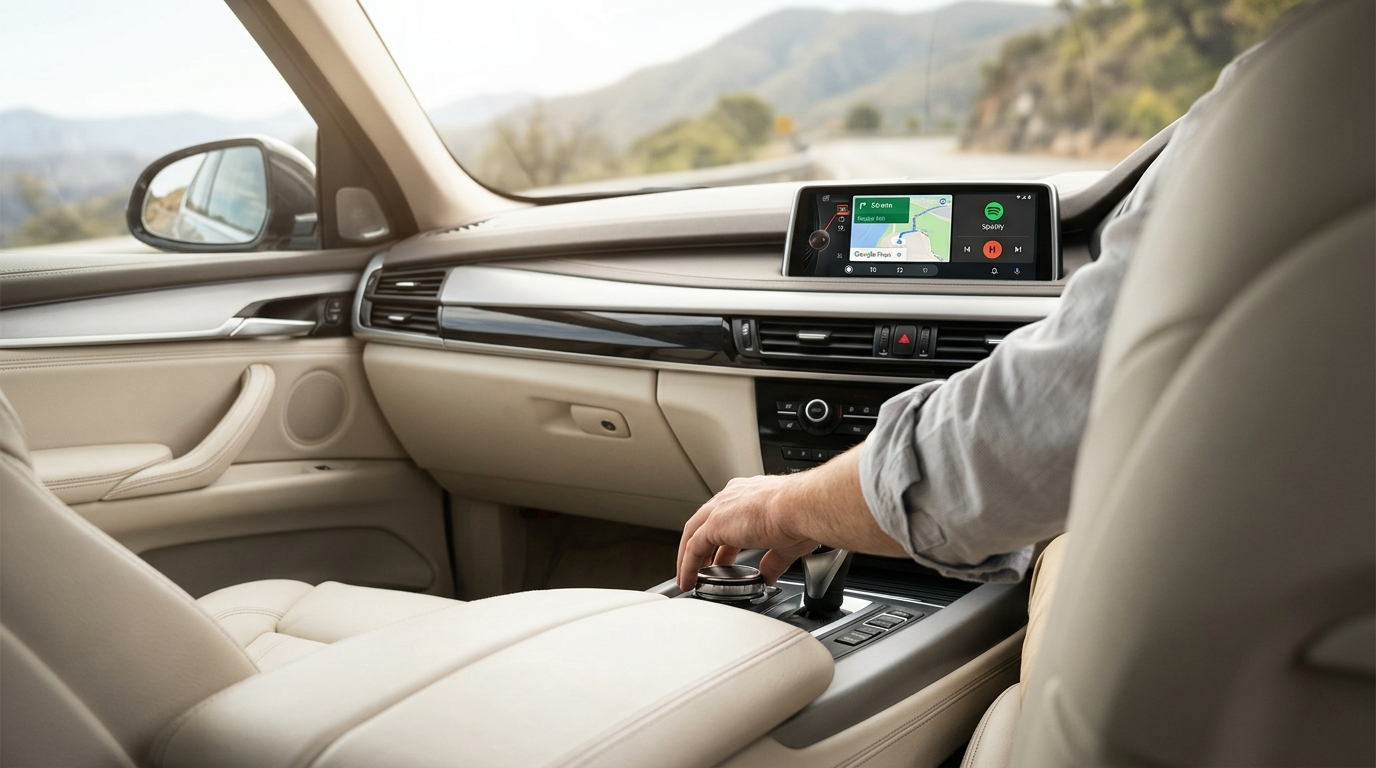
The Carlinkit TBox is a compact Android 13 computer that plugs directly into your car's USB port. It uses your BMW's existing wireless Apple CarPlay channel as its entry point and replaces it with a full Android environment — including wireless Android Auto, Google Maps, Spotify, YouTube, Netflix, and any app from the Play Store.

Because nothing is physically modified, it can be unplugged before a service appointment with no trace left behind. Your original iDrive, reverse camera, parking sensors, and steering wheel controls all continue to work exactly as before.

I had wireless CarPlay on my 2017 X5 but never used it because I have an Android phone. Plugging in the TBox took about eight minutes and now Google Maps is on the big screen every single drive. I genuinely did not expect it to be this straightforward.

— Simon R., 2017 BMW X5 owner, Sydney NSW

Requires: Wireless CarPlay No tools needed Fully reversible Android 13 included
F15 Owners: Check This First
The F15 did not have wireless CarPlay from the factory on most Australian-delivered vehicles. Some later-production NBT EVO cars (late 2017 build dates) may have had wireless CarPlay activated via dealer coding. If your iDrive shows only a wired CarPlay option, the TBox will not activate — use Method 2 instead.
2 Best for Most F15 Owners

Carlinkit MMI Decoder — Deep Integration

The MMI Decoder (also known as the MMI Retrofit module) is the recommended solution for F15 owners who either have no CarPlay at all, or who have only wired CarPlay. It installs behind the factory screen using pin-to-pin connectors — no soldering, no wire cutting — and adds both wired and wireless Android Auto (plus wired and wireless CarPlay) directly through your existing iDrive display.

From the driver's seat, the experience feels completely factory-integrated. Your iDrive rotary controller, touchscreen (if fitted), and steering wheel buttons all control the Android Auto interface. Switching back to the original iDrive menu takes a single button press.

  • Works on NBT (iDrive 5) and NBT EVO (iDrive 6) systems
  • Does not require existing CarPlay — adds it from scratch
  • Keeps all factory functions including parking sensors and reverse camera
  • Installs behind the dash with no visible aftermarket hardware
Installation: Behind dash (1–2 hrs) Works without CarPlay Full screen integration
3 Maximum Upgrade

Android Screen Replacement

For owners who want the most significant visual and functional upgrade, aftermarket Android screen replacements swap the original 6.5-inch or 8.8-inch factory display for a larger 10.25-inch or 12.3-inch unit running a full Android OS. The result is a dramatically larger, higher-resolution display with native Android Auto, entertainment apps, and more.

This is the most involved option. Professional installation is strongly recommended, and the cost is higher than the plug-and-play methods. However, if your original screen is showing its age — dim backlighting, slow response, or an outdated resolution — a screen replacement solves every problem in one go.

Requires: Professional install Larger display Highest cost

What Changes After the Upgrade

Once you have Android Auto running on the F15's iDrive display, the day-to-day driving experience shifts noticeably. Here is what you gain immediately:

  • Live traffic navigation: Replace the outdated stock BMW maps with Google Maps or Waze, which pull live incident data and reroute dynamically — particularly useful on Sydney's M1 and M2 corridors or Melbourne's Monash Freeway during peak hours.
  • Hands-free voice control: Say "Hey Google" to send messages, make calls, or get directions without touching the screen. Your BMW's existing microphone handles the input.
  • App freedom: Stream from Spotify, YouTube Music, Audible, or Pocket Casts through your BMW's factory speaker system — Harman Kardon or standard, both at full output quality.
  • Entertainment during stops: The TBox and Screen Replacement methods support YouTube and Netflix on the display when parked — ideal during EV charging sessions or while waiting in school pickup queues.
  • Phone stays in your bag: Once paired, wireless Android Auto connects automatically every time you start the car. No cable, no Bluetooth ritual.

Step-by-Step Setup: AI Box (TBox) Method

If you have confirmed wireless CarPlay is available on your F15, the TBox setup typically takes under 15 minutes with no tools required.

Pro Tip
Before starting, perform a full iDrive factory reset (Settings → Reset → Factory Reset). This takes about two minutes and significantly reduces first-time pairing issues — a small step that saves a lot of troubleshooting later.
  1. Enable Bluetooth and Wi-Fi on your Android phone, and ensure Android Auto is installed and up to date.
  2. Locate the CarPlay-designated USB port in the centre console. On the F15, this is typically the port closest to the gear selector — the other ports are charge-only and will not activate the TBox.
  3. Plug the TBox into the correct USB port using the included harness. The iDrive screen will show a CarPlay prompt within 30–60 seconds.
  4. Find the TBox device name in your phone's Bluetooth settings and tap to pair. The system then establishes a Wi-Fi Direct connection automatically.
  5. The Android Auto interface will appear on your iDrive screen. For ongoing use, open TBox settings and enable "Auto-Connect" so pairing happens automatically on every start.
  6. Connect the TBox to your phone's hotspot or insert a Nano SIM for independent internet access (needed for Google Maps and streaming on the TBox's own processor).
  7. Check for firmware updates immediately after first boot: navigate to Settings in the TBox interface and select "Check for Updates."

To switch back to your original iDrive interface at any time, hold the Menu button on the iDrive controller for approximately two seconds. Both interfaces remain fully intact and accessible.

Frequently Asked Questions

The TBox (AI Box) is a plug-and-play USB accessory with no permanent modifications to any factory system. Because it is fully reversible, it carries minimal warranty risk — unplug it before a service visit and there is no evidence it was ever installed. The MMI Decoder uses pin-to-pin connectors and is also non-destructive, but because it involves accessing behind the dashboard, we recommend confirming with your local BMW dealer before purchasing if you are close to the end of your factory warranty. The screen replacement is the most involved method and should be discussed with your dealer and installer before proceeding.
Yes — all three methods preserve your original iDrive functionality completely. The rotary controller, steering wheel buttons, and touchscreen (if your F15 is fitted with one) all continue to work normally. Switching between the Android Auto interface and the native iDrive menu is instant and requires no reinstallation or rebooting. Your parking sensors, reverse camera feed, and all factory driver assistance features remain fully operational.
If your F15 has wired CarPlay only, the TBox (AI Box) will not activate — it requires wireless CarPlay as its handshake protocol. Your best option is the Carlinkit MMI Decoder, which works independently of any existing CarPlay setup and adds full wireless Android Auto through a behind-dash installation. If you are unsure of your setup, contact Carlinkit AU with your VIN and they will confirm compatibility before you order.
Wireless Android Auto requires Android 11.0 or higher. All current Samsung Galaxy, Google Pixel, and OnePlus devices are compatible. Xiaomi phones generally perform very well. Some Huawei models may have limited compatibility due to Google Mobile Services restrictions — if you have a newer Huawei device, contact Carlinkit AU to confirm before purchasing.
For Android Auto specifically — where your phone handles navigation and streaming — a mobile data connection on your phone is sufficient. If you want the TBox to run Google Maps and apps independently (without relying on your phone at all), you can either use your phone as a hotspot or insert a Nano SIM card directly into the TBox. This is particularly useful on long drives where you want to keep your phone battery free.
No ongoing subscription is required. All Carlinkit AU products include firmware updates at no extra cost, and the TBox and MMI Decoder come with a two-year manufacturer's warranty along with a 30-day returns policy. Unlike some BMW digital subscription features, the hardware cost is a one-time purchase.

Ready to Add Android Auto to Your F15?

Carlinkit AU manually verifies compatibility for every order. Send your VIN or build date and our team will confirm the right solution for your exact 2017 X5 configuration — free, before you buy.

Browse F15-Compatible Solutions

© 2026 Carlinkit Factory Australia · Information current as of May 2026. Always verify compatibility with your specific VIN before purchasing.

Leave a Reply