

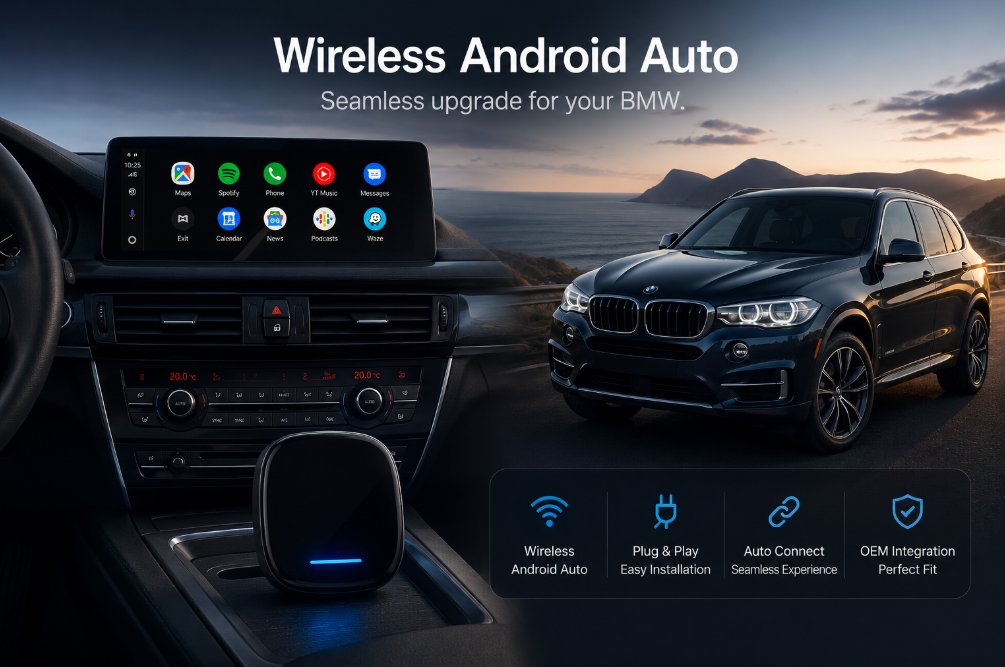
How to Install Wireless Android Auto in Your 2017 BMW
A complete, no-jargon walkthrough for adding wireless Android Auto to NBT/EVO-equipped 2017 BMWs using the Carlinkit TBox — no dashboard disassembly, ready in under 20 minutes.
01 — Compatibility
2017 BMW Android Auto Support: What You Need to Know
The Carlinkit TBox is exactly that workaround. It integrates with your existing NBT or EVO head unit to add full wireless Android Auto — no coding, no dashboard removal, no factory settings permanently altered.
Compatible 2017 BMW Models
| Model | Chassis | iDrive System | TBox Compatible |
|---|---|---|---|
| 3 Series | F30 / F31 (2017–2019) | NBT / EVO | ✓ Yes |
| 5 Series | F10 (select 2017) | NBT | ✓ Yes |
| X3 | F25 (2017) | EVO | ✓ Yes |
| 4 Series / X4 | F32 / F26 (2017) | NBT / EVO | ✓ Yes |
Not sure which iDrive system your car has? Go to iDrive menu → Settings → System Information. If you see ID5 or ID6, you're fully compatible. If you're still unsure, contact us with your VIN number before ordering.
02 — Preparation
What You Need Before You Start
Gather the following before beginning. Having everything ready keeps the installation under 20 minutes.
- Carlinkit TBox main unit (included harness and cables)
- Your BMW's iDrive system version confirmed (NBT or EVO, ID5/ID6)
- An Android phone running Android 11 or later (required for wireless Android Auto)
- Center console USB port working and accessible — give it a quick test beforehand
Pro tip from the field: Before plugging in the TBox, perform a full iDrive factory reset on your BMW. This takes about two minutes and significantly reduces first-time pairing failures — a simple step that saves a lot of troubleshooting time later.
03 — Installation
Carlinkit TBox Installation: Step-by-Step
The entire process is plug-and-play. No tools are needed, and nothing is permanently modified. Here's how it works:
-
1
Locate the interface behind the center console
Find the dedicated USB or harness connector beneath or behind the center console — the exact location varies slightly between models but is accessible without any disassembly.
-
2
Connect the TBox power and signal cables
Plug in the TBox unit using the included harness. Connect the power cable and data signal cable as indicated in the quick-start guide. There are no complicated wire splices required.
-
3
Start the vehicle and wait for the TBox to initialize
Turn on the car. The TBox will perform a self-check — you'll see the LED glow steadily once it's ready. This usually takes 30–60 seconds.
-
4
Complete the initial Bluetooth and Wi-Fi pairing
On your phone, enable Wi-Fi and Bluetooth, then open Android Auto. Follow the on-screen prompts to pair with the TBox. This is only needed once — future connections are fully automatic.
-
5
Enable wireless Android Auto and test
In your phone's Android Auto settings, enable the wireless connection option. Get in range of the car and verify that it connects automatically. You can switch between the TBox interface and the native iDrive menu directly from the screen.
Warranty note: Because this installation is entirely non-destructive — nothing is cut, soldered, or permanently modified — it is generally considered low-risk with respect to your factory warranty. That said, practices vary by dealership and region. If you're concerned, we recommend checking with your local BMW dealer before installing.
04 — Post-Install Settings
Post-Installation Settings & Optimization
Once the TBox is running, spending five minutes on these settings will noticeably improve your daily experience:
- Update TBox firmware: Connect to Wi-Fi on the TBox's Android interface and check for updates immediately after installation. Firmware updates often improve compatibility and reduce latency.
- Enable auto-connect: Turn this on so your phone connects the moment you get in the car — no button presses needed.
- Adjust audio output routing: Set audio to pass through the factory BMW speakers via the original amplifier for the best sound quality.
- Set screen resolution: Match the TBox's output resolution to your BMW's iDrive display for the sharpest image.
- Configure heat dissipation: Avoid tucking the TBox unit in an area with no airflow. Leave it in a position where it can ventilate naturally, and keep it out of direct sunlight.
05 — Performance & Features
Real-World Performance & Unique Features
Latency, Smoothness, and Daily Driving
In real-world use, navigation apps load quickly, voice assistant wake times are responsive, and music apps play without noticeable stuttering. Even in wireless mode, latency is low enough for comfortable everyday driving — you won't find yourself reaching for your phone.
Full Android OS
Install any app directly on the TBox — not just screen-mirroring from your phone.
Independent Connectivity
Use a built-in Wi-Fi hotspot or install a SIM card — no reliance on your phone's data.
Parked Entertainment
Stream Netflix, YouTube, or other media apps on the factory screen while parked.
Wireless Auto-Connect
After initial setup, your phone reconnects automatically every time you start the car.
Phone compatibility: Xiaomi phones perform very well. Most Android 11+ devices work reliably. Huawei phones are compatible in most cases, though due to GMS (Google Mobile Services) limitations on some Huawei models, we recommend confirming compatibility before purchasing.
06 — Comparison
Android TBox vs. Factory iDrive System
Here's how the Carlinkit TBox stacks up against the factory-only experience for Android users:
Out-of-box experience for 2017 BMW Android users
After TBox installation
Android users gain far more freedom — from app choice to navigation options. What maps and music apps do you use daily? The TBox likely supports all of them out of the box.
07 — FAQ
Frequently Asked Questions
Ready to Upgrade Your 2017 BMW?
The Carlinkit TBox installs in minutes and transforms your factory iDrive into a full wireless Android Auto system. Browse the full range at Carlinkit Factory AU.
Shop Carlinkit TBox →