

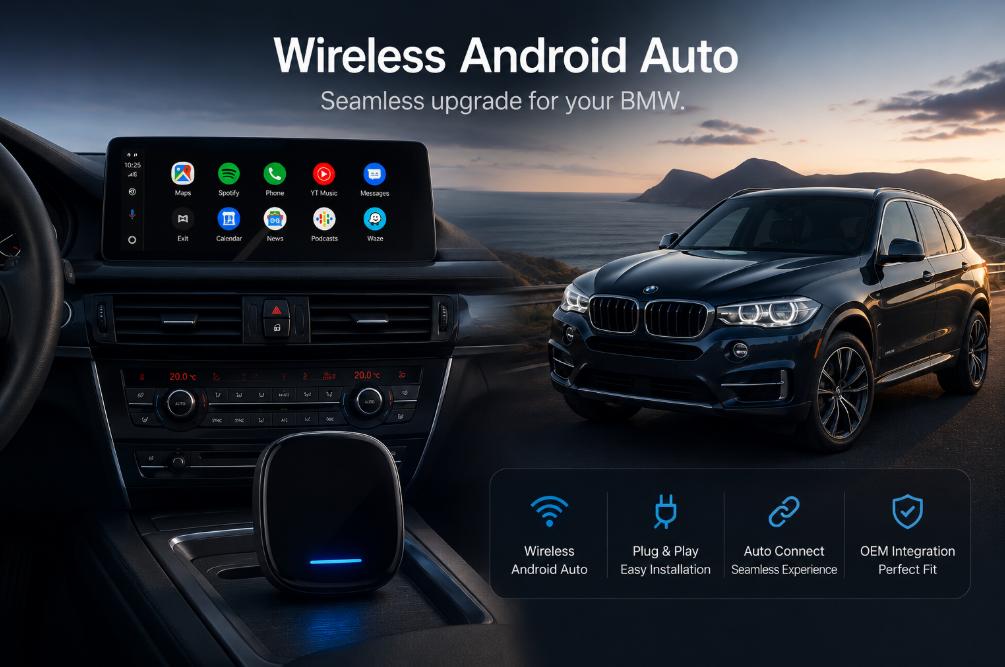
Add Wireless Android Auto
to Your 2016 BMW X5
Your NBT iDrive system is solid — but it was never designed for Android. Here's exactly how to add wireless Android Auto in 2026, with the right solution for your specific setup.
Why Your 2016 X5 Doesn't Have Android Auto — And What You Can Do About It
The 2016 BMW X5 (F15) came fitted with BMW's NBT infotainment platform. It's a capable system — well-built, responsive, and genuinely premium. But it was designed before Android Auto existed as a standard feature, which means there's no native support for Google Maps on the big screen, no Spotify streaming, and no voice commands via Android.
If you're an Android user, the gap between what your phone can do and what your car's screen shows is frustrating every single day. The good news: there are proven retrofit solutions available right now that fix this permanently — no cutting wires, no voiding warranties, no trips to a dealership.
🔍 How to Check Your iDrive Version (2 minutes)
- Start your car and open the iDrive menu via the central controller.
- Navigate to Settings → Software Update → Show Current Version (or Settings → System → About).
- If the version string begins with "NBT" — your car has the older NBT system, likely without factory CarPlay. The MMI Decoder is your solution.
- If your version shows "NBT EVO" or your car has a factory wireless CarPlay option already active — you may be eligible for the BMW AI Box (TBox). Contact Carlinkit AU to confirm with your VIN.
The Three Ways to Add Android Auto to a 2016 BMW X5
There's no universal answer — the right solution depends on your iDrive variant and how you want to use Android Auto. Here's an honest breakdown of all three options.
🔌 Carlinkit MMI Decoder
Installs behind your screen to add wireless Android Auto and CarPlay from scratch. Designed specifically for older BMW NBT systems without factory CarPlay. Most 2016 X5 owners will need this.
📦 BMW TBox / AI Box
A full standalone Android 13 computer that streams Netflix, YouTube, and more independently. Requires factory wireless CarPlay to activate. Not suitable for standard NBT without CarPlay.
🖥 Aftermarket Android Screen
Replaces the original 6.5" or 8.8" display with a larger touchscreen running full Android. Maximum upgrade, but involves professional installation and is the most expensive path.
Solution Comparison at a Glance
| Feature | MMI Decoder | BMW TBox (AI Box) | Android Screen |
|---|---|---|---|
| Works on standard NBT (no CarPlay) | ✔ Yes | ✘ No* | ✔ Yes |
| Installation complexity | DIY-friendly (1 hr) | Plug-and-play (15 min) | Professional required |
| Wireless Android Auto | ✔ | ✔ | ✔ |
| Wireless Apple CarPlay | ✔ | ✔ | ✔ |
| Independent Android OS (no phone needed) | ✘ | ✔ Android 13 | ✔ |
| Netflix / YouTube streaming | ✘ | ✔ (parked) | ✔ (parked) |
| Original iDrive / reverse camera retained | ✔ | ✔ | ✔ |
| Steering wheel controls | ✔ | ✔ | ✔ |
| Relative cost | $ Mid-range | $$ Mid-high | $$$ Premium |
*The TBox requires factory wireless CarPlay to activate. If your 2016 X5 has no factory CarPlay, the MMI Decoder is the correct product.
Installation Guide: Carlinkit MMI Decoder on a 2016 X5
For most 2016 BMW X5 owners with a standard NBT system, the MMI Decoder is the recommended path. Here's how the installation works.
Before You Start
Confirm your iDrive version (NBT vs NBT EVO) using the steps above. Have your Carlinkit device and the included cables ready. If your X5 is in direct sunlight, let it cool first — extreme heat during initial setup can cause calibration issues.
-
1
Locate the USB data port
Find the USB port in the centre console or armrest compartment. Use the data port — not a charge-only port. These look identical, so if you're unsure, check your owner's manual for the CarPlay/media USB port location.
-
2
Connect the Carlinkit decoder
Plug the device into the USB port using the supplied extension cable. Route the cable discreetly into the armrest compartment for a clean, factory look.
-
3
Start the engine and wait
The device boots automatically — no button presses needed. An interface prompt will appear on your iDrive screen within 30–60 seconds.
-
4
Pair your Android phone
Enable Bluetooth and Wi-Fi on your phone, then follow the on-screen Android Auto pairing prompt. Approve the Android Auto permissions when asked. Enable auto-connect so your phone reconnects instantly every time you start the car.
-
5
Verify controls and camera
Test the steering wheel volume and skip controls — they should work normally. Engage reverse to confirm the factory reversing camera still activates. If the camera doesn't appear, check the settings menu on the Carlinkit interface.
- Use a 5GHz Wi-Fi hotspot from your phone for a faster, more stable wireless connection.
- If you get a black screen on first boot, restart the car — this resolves itself after the device completes its initial setup cycle.
- A loose USB connection is the most common cause of "device not recognised" errors. Reseat the cable firmly until you feel it click.
- One customer (Melbourne, X5 xDrive35i) found that adding a dual power cable via the 12V cigarette lighter socket brought connection reliability close to 100% on long highway drives.
What to Expect After Installation
Once everything is paired, the upgrade is immediately noticeable. Google Maps shows on the iDrive screen with turn-by-turn voice guidance. Spotify and Google Play Music play with essentially no lag. Phone calls route cleanly through the car's microphone and speakers.
Optimising Your Setup
A few settings changes make a meaningful difference to day-to-day performance. Enable automatic reconnect in the Android Auto app so your phone connects the moment you start the car. If you're in an area with a reliable 5GHz hotspot option, prioritise that band — the extra bandwidth keeps the wireless stream smooth even during navigation and audio playback simultaneously. Keep the device's firmware updated via the OTA update function; Carlinkit regularly pushes fixes and compatibility improvements.
Heat Management
In Australian summer conditions, the device can warm up significantly in a parked car. If you notice sluggishness on a hot day, give it a minute to cool down after starting the car. Positioning the armrest lid slightly ajar helps airflow during particularly hot weather.
Troubleshooting Common Issues
Slow or Failed First Connection
Normal on first boot. The device is completing its initial configuration — wait 90 seconds before concluding something is wrong. On subsequent starts, connection typically takes under 10 seconds.
Intermittent Disconnects
Most often caused by: (1) using a charge-only USB port instead of the data port, (2) a loose cable seating, or (3) the phone's hotspot switching between 2.4GHz and 5GHz. Check all three before considering a firmware update.
Firmware Update Process
Connect to Wi-Fi via hotspot, navigate to the Carlinkit settings menu, and select "Check for Updates." Updates download and install automatically — the device reboots once complete. Contact Carlinkit AU support if an update fails to apply.
Frequently Asked Questions
Does the 2016 BMW X5 have wireless Android Auto built in?
Will any modification affect the original iDrive, reverse camera or parking sensors?
Can the BMW TBox work on my 2016 X5?
What Android phone versions are compatible?
Is there a warranty for Australian buyers?
Do the steering wheel controls still work?
Ready to Upgrade Your 2016 X5?
The right Carlinkit solution will transform your daily drive — proper Google Maps, stable Spotify, and a system that finally matches what your phone can do.
Shop BMW Solutions →