

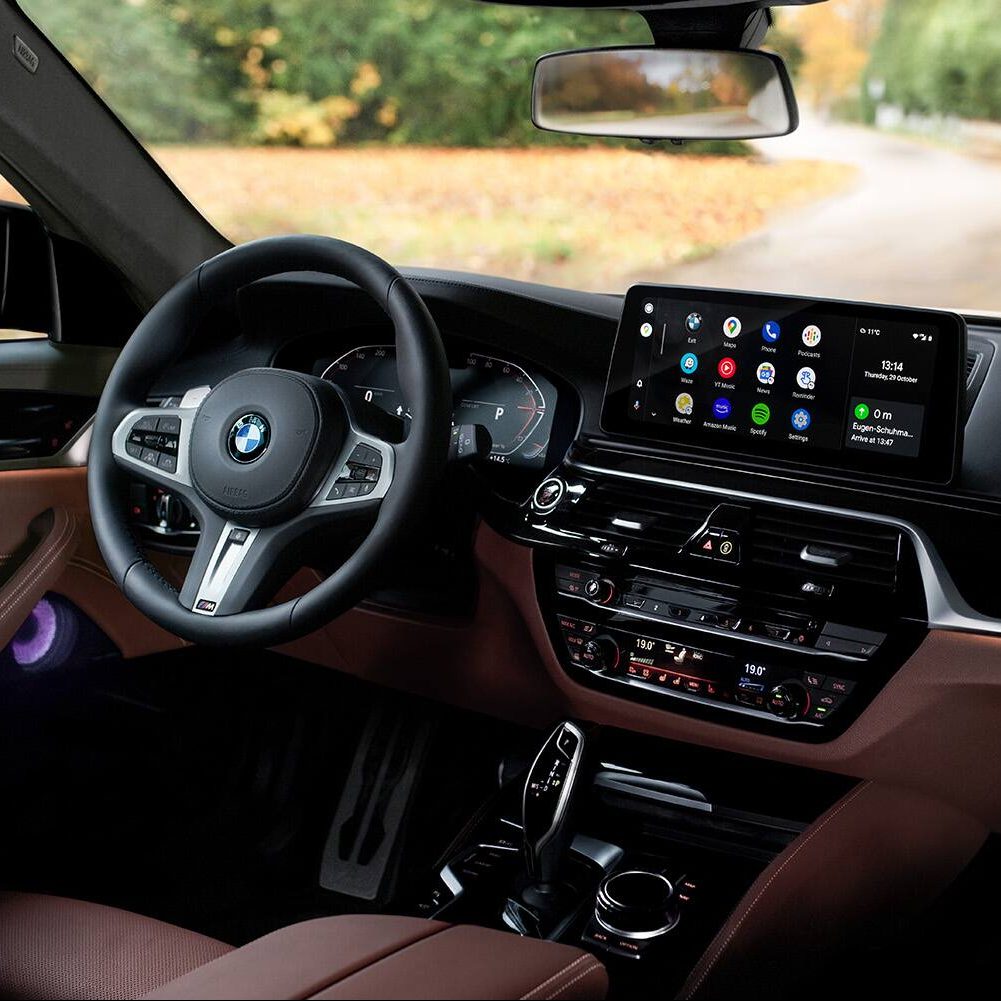
Understanding Android Auto
https://www.youtube.com/watch?v=hTSUQNey_jI&embed=true
Android Auto is a sophisticated system developed by Google to integrate a user’s Android smartphone with the vehicle’s infotainment system. It enables drivers to access key mobile features directly through the dashboard’s display.
Here’s a brief overview of Android Auto’s features:
- Navigation: Drivers can use Google Maps or Waze for real-time GPS navigations and traffic updates.
- Communication: The system supports calling and messaging through voice commands, minimizing distractions.
- Entertainment: Users enjoy music, podcasts, and audiobook streaming through compatible apps such as Spotify, Pandora, and Audible.
- Voice Commands: Google Assistant allows drivers to control functions hands-free, enhancing safety.
To utilize Android Auto, vehicles and smartphones must be compatible with the system. The integration typically works through:
- A USB connection, which requires plugging the smartphone into the vehicle’s USB port.
- A wireless connection available on select models, eliminating the need for cables.
To start using Android Auto, users need to:
- Install the Android Auto app on their smartphone.
- Connect the phone to the vehicle via USB or wirelessly (if available).
- Follow the on-screen prompts to complete the setup.
BMW has integrated Android Auto compatibility in models featuring the Operating System 7, also known as iDrive 7. Users can enjoy a seamless connection between their smartphone and their BMW’s digital features to make driving more convenient and enjoyable.
Compatibility and Requirements
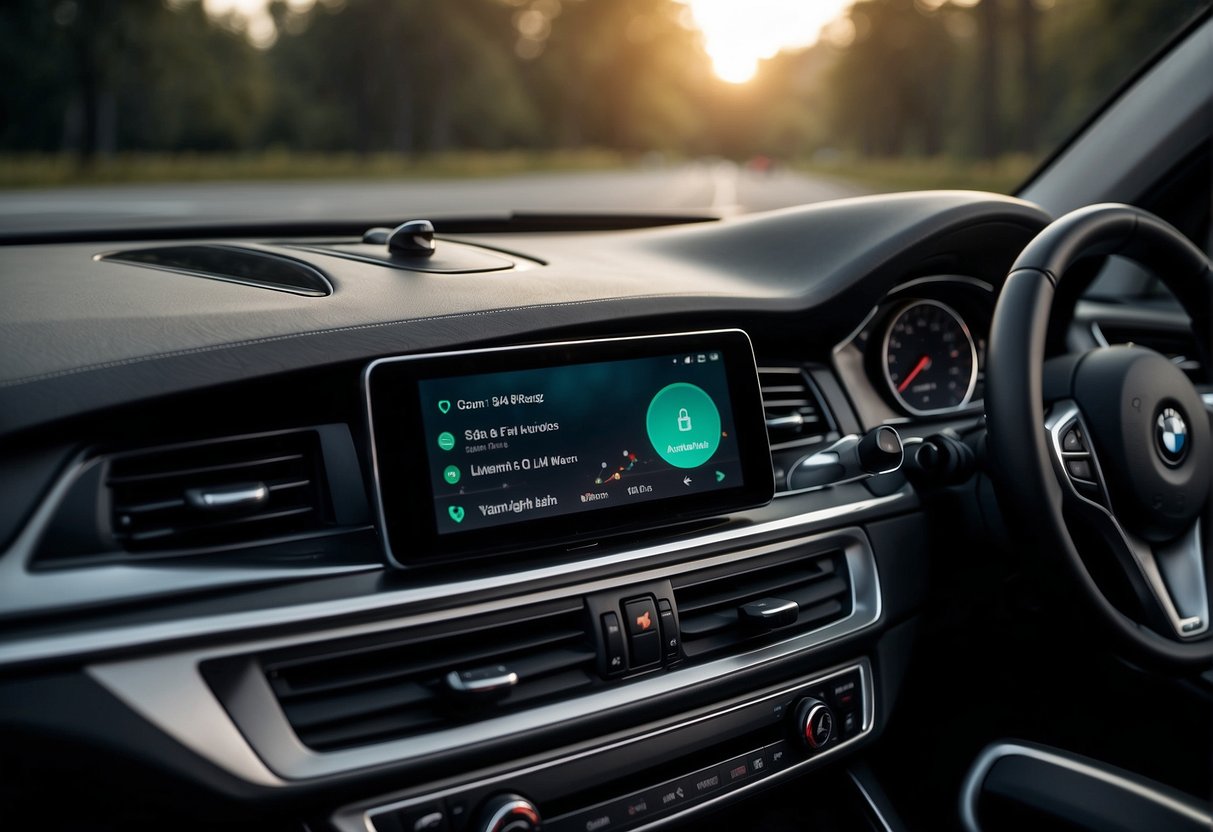
To integrate Android Auto into a BMW vehicle, it is essential to ensure that both the vehicle’s model and the installed software meet specific compatibility criteria. The hardware, such as the smartphone being used, also needs to adhere to set requirements.
Check BMW Model Compatibility
BMW indicates that Android Auto is available for models equipped with Live Cockpit Plus or Professional that operate on Operating System 7 (iDrive 7). Prior to attempting to set up Android Auto, owners should confirm their BMW model supports this feature.
Software Requirements
For smooth operation of Android Auto, the vehicle’s software should be version 20-07 or newer. Additionally, the user’s Android smartphone requires Android 10.0 or higher. Ensuring the latest software updates will facilitate compatibility and enhanced functionality.
Hardware Requirements
The user’s smartphone should support a wireless connection for Android Auto. BMW has enabled support only for Android Auto Wireless, which means that compatible Android smartphones can connect without the need for cables, promoting a more seamless user experience.
Installation Process
To integrate Android Auto with a BMW, owners must first enable smartphone connectivity within their vehicle settings. Following that, the Android Auto application should be downloaded and installed on the user’s smartphone, and finally, the phone must be connected to the BMW’s system.
Enable Smartphone Connectivity in BMW
Owners must navigate to the BMW’s iDrive system settings and look for the option to enable smartphone connectivity. In vehicles equipped with iDrive 7.0, for instance, this feature might be found under the ‘Mobile Devices’ menu. Activating this setting is crucial as it allows the vehicle to recognize and communicate with the user’s smartphone.
Download and Install Android Auto App
Users need to install the Android Auto app from the Google Play Store to ensure compatibility with their BMW. Once the app is installed, they should launch it and follow the on-screen instructions to set it up, granting the necessary permissions for it to operate properly with their vehicle.
Connect Your Smartphone to BMW
For the final step, users should connect their smartphone to their BMW using a USB cable or wirelessly if their vehicle supports it. They must ensure the vehicle is in park and that the handbrake is engaged during this step. Once connected, the Android Auto interface should appear on the BMW’s display, and users can access their favorite apps and services while driving.
Configuration and Setup
https://www.youtube.com/watch?v=UvDpJAIw6pY&embed=true
Configuring Android Auto in a BMW enhances the driving experience by seamlessly integrating smartphone apps with the vehicle’s infotainment system. This section outlines the necessary steps for initial setup, interface customization, and voice command activation.
Initial Setup for Android Auto
To begin, ensure the vehicle’s software is up to date and compatible with Android Auto. Owners of BMW cars with Operating System 7 or 8 can typically use Android Auto; some older models might require a software upgrade. The user should connect their smartphone to the car via a USB cable or Bluetooth. Upon connecting, a prompt on the smartphone will guide the user through the setup process.
Customizing Android Auto Interface
The user can personalize the Android Auto interface on their BMW to prioritize essential apps for easier access while driving. This can be done from the smartphone’s Android Auto app settings, where apps can be reordered or hidden based on the user’s preference. For instance, navigation and media apps can be placed at the forefront for quick selection.
Setting Up Voice Commands
Voice commands through Google Assistant are vital for a hands-free and focused driving experience. To activate voice commands, the user should press and hold the voice command button on the steering wheel or select the microphone icon on the car’s touchscreen. Initial voice setup may be completed on the smartphone, where the user can train the voice model for better recognition.
Using Android Auto
https://www.youtube.com/watch?v=QLTLP-0sEYI&embed=true
After successfully integrating Android Auto into a BMW, drivers can enhance their driving experience by leveraging the system’s seamless connectivity with their Android device.
Navigation and Maps
Android Auto simplifies navigation by integrating Google Maps and Waze, offering real-time traffic updates, route guidance, and alternate paths. Users can access the maps via voice commands or the iDrive controller, ensuring they reach their destination efficiently.
Making Calls and Messaging
It allows for hands-free calling and messaging, which is essential for maintaining focus on the road. Drivers can send or receive messages and make calls through simple voice commands, reducing the need to look away from the road.
Playing Music and Media
Drivers can stream music, podcasts, and audiobooks from services like Spotify and Audible through Android Auto, providing entertainment and keeping them alert on long drives. The system’s intuitive interface makes it easy to search and control media playback.
Accessing Third-Party Apps
Besides the usual suite of Google apps, Android Auto supports a variety of third-party apps, allowing users to broaden their infotainment options. From messaging apps like WhatsApp to audiobook apps, they can be accessed directly from the vehicle’s display.
Troubleshooting Common Issues
https://www.youtube.com/watch?v=DJPiZXk2hGY&embed=true
When integrating Android Auto with a BMW, users might encounter a range of issues from connectivity to app stability, and audio problems. Understanding how to identify and rectify these challenges is essential to restore functionality swiftly.
Connectivity Problems
Connectivity issues are often the culprits when Android Auto won’t display or function correctly in a BMW. Users should ensure that both Android Auto and Google Assistant’s Driving Mode are enabled on their phones. For wireless connection problems, confirming that wireless projection is set up correctly in the Android Auto settings is a critical step. If problems persist, one may need to troubleshoot the wireless connection, examining factors such as compatibility, distance from the vehicle, obstructive items, and DND modes.
App Crashes and Stability
App instability can manifest through frequent crashes or failure to launch. The user should ensure their Android Auto app is up-to-date, as outdated versions may lead to compatibility issues with the vehicle’s software. A simple action like rebooting the Android device can clear up minor conflicts causing such issues. Checking the BMW’s iDrive system for software updates can also help, as manufacturers regularly release updates to rectify known problems.
Audio and Microphone Issues
Common complaints include absence of sound or microphone malfunctions during calls or voice commands. One should check if the phone’s volume is turned up and not muted while it’s connected. Additionally, users can inspect their BMW’s audio settings to ensure that Android Auto is set as the selected audio source. If the microphone is not picking up voice commands correctly, the user may need to verify the microphone settings on their smartphone and ensure no obstruction is causing interference.
Updates and Maintenance
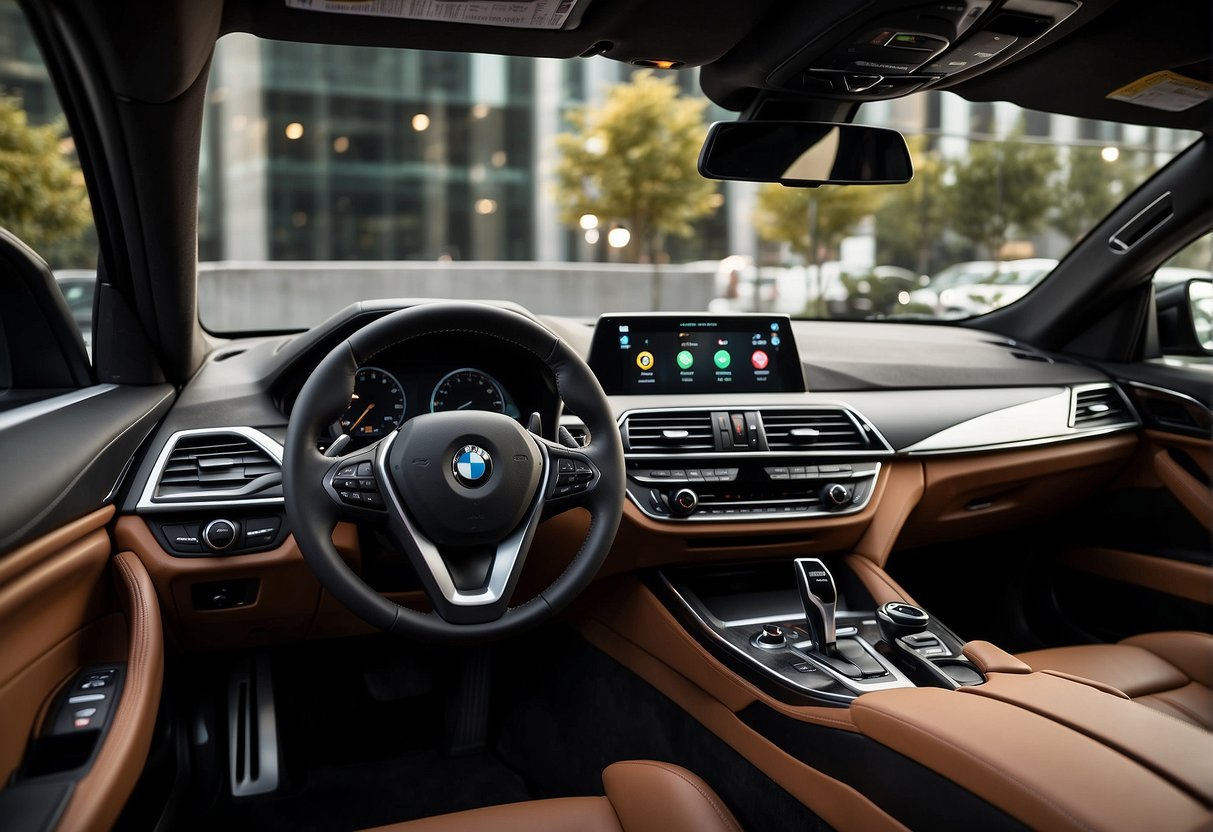
Keeping Android Auto functioning seamlessly in your BMW requires periodic updates to the app itself and the vehicle’s software, along with routine checks and maintenance to ensure compatibility and performance.
Updating Android Auto App
Users should regularly check the Google Play Store for Android Auto app updates to access new features and improvements. App updates can include bug fixes and enhanced stability, which are critical for safe and efficient operation during driving.
BMW Software Updates
To maintain compatibility with the latest smartphones and Android Auto app versions, BMW periodically releases software updates for the vehicle’s infotainment system. Owners can obtain these updates at their dealership or, for some models, over-the-air directly in the vehicle.
Routine Checks and Maintenance
Regular maintenance checks can help prevent technical issues with Android Auto in your BMW:
- Connectivity: Ensure that the smartphone’s USB cable and wireless connection (if applicable) function properly.
- Compatibility: Verify that the smartphone is on the list of Android Auto Compatible Phones.
- System Check: Conduct routine system checks through the BMW infotainment settings to ensure that Android Auto is running without faults.
Wireless CarPlay and Android Solutions
BMW owners desiring a cable-free interface for their in-car infotainment systems can opt for the innovative BMW AI Box. It paves the way for wireless CarPlay and Android Auto, providing a more convenient and integrated driving experience. By introducing the full-fledged Android system into the vehicle, users gain access to an array of apps and services complemented by the option to use a 4G SIM card for increased connectivity.
For vehicles that do not currently feature CarPlay, owners can turn to the specialized Automotive Decoder Module. This module is a sleek solution designed to imbue older BMWs with modern connectivity, including both CarPlay and Android Auto, with no necessity for alterations to the existing screen or the vehicle’s interior.
Alternatively, for an elevated multimedia experience, BMW drivers may consider upgrading to a high-performance United Screen or Android Screen. Such upgrades typically involve a more comprehensive installation process, including the removal of the center dash. Despite the extra steps, these upgrades offer a more immersive display and an expanded suite of features. For those interested, an array of Android Screens specifically fashioned for BMW models are available.
Choosing amongst these options allows BMW owners to select the connectivity solution that best aligns with their preferences and requirements, ensuring that their vehicle meets all their digital connectivity needs without sacrificing style or functionality.
Frequently Asked Questions
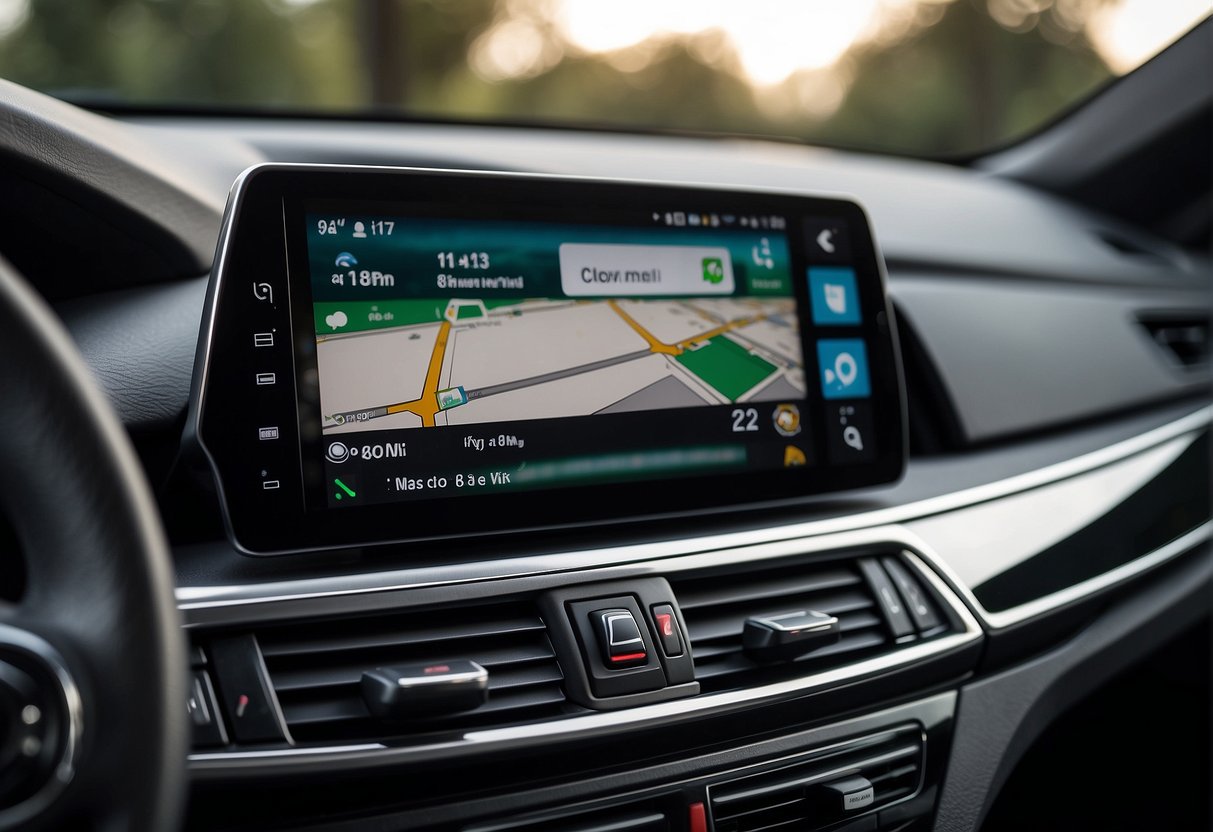
Upgrading to Android Auto in BMW vehicles can enhance the driving experience by facilitating access to navigation, communication, and media apps. The following questions address common queries BMW owners may have regarding Android Auto integration.
What steps are involved in upgrading to Android Auto in a BMW 3 series?
To upgrade to Android Auto in a BMW 3 series, one must ensure their vehicle is equipped with Live Cockpit Pro (6U3) or Live Cockpit Plus (6U2). If these are present, the upgrade process typically involves a software update that can be done at a BMW dealership or possibly over-the-air, depending on the model year.
How can I retrofit Android Auto into my BMW if it didn’t come with it?
Retrofitting Android Auto into a BMW that didn’t originally come with it might require both hardware and software modifications. There are aftermarket solutions available that provide detailed instructions and necessary components for this upgrade.
Are all BMW models compatible with Android Auto?
Not all BMW models are inherently compatible with Android Auto. Compatibility may vary based on the vehicle’s build year and installed infotainment system. BMW owners should consult with a dealership or refer to official BMW resources for their specific model’s compatibility.
What’s the process to enable Android Auto on a BMW X3?
Enabling Android Auto on a BMW X3 involves connecting your Android device to the vehicle’s infotainment system via USB or wireless connection, depending on your model’s capabilities. Once connected, the vehicle’s system will prompt to enable Android Auto, usually followed by setup steps on your device.
How can BMW’s iDrive 6 system be integrated with Android Auto?
BMW’s iDrive 6 system requires a software update to integrate with Android Auto, provided the vehicle is compatible. This update is usually available through BMW’s dealership network or official BMW service centers.
Is the BMW apps system compatible with Android devices?
The BMW apps system is designed to be compatible with Android devices, allowing drivers to connect their smartphones and use select apps through the vehicle’s infotainment interface. Compatibility and available features might be contingent on the vehicle’s model and software version.