

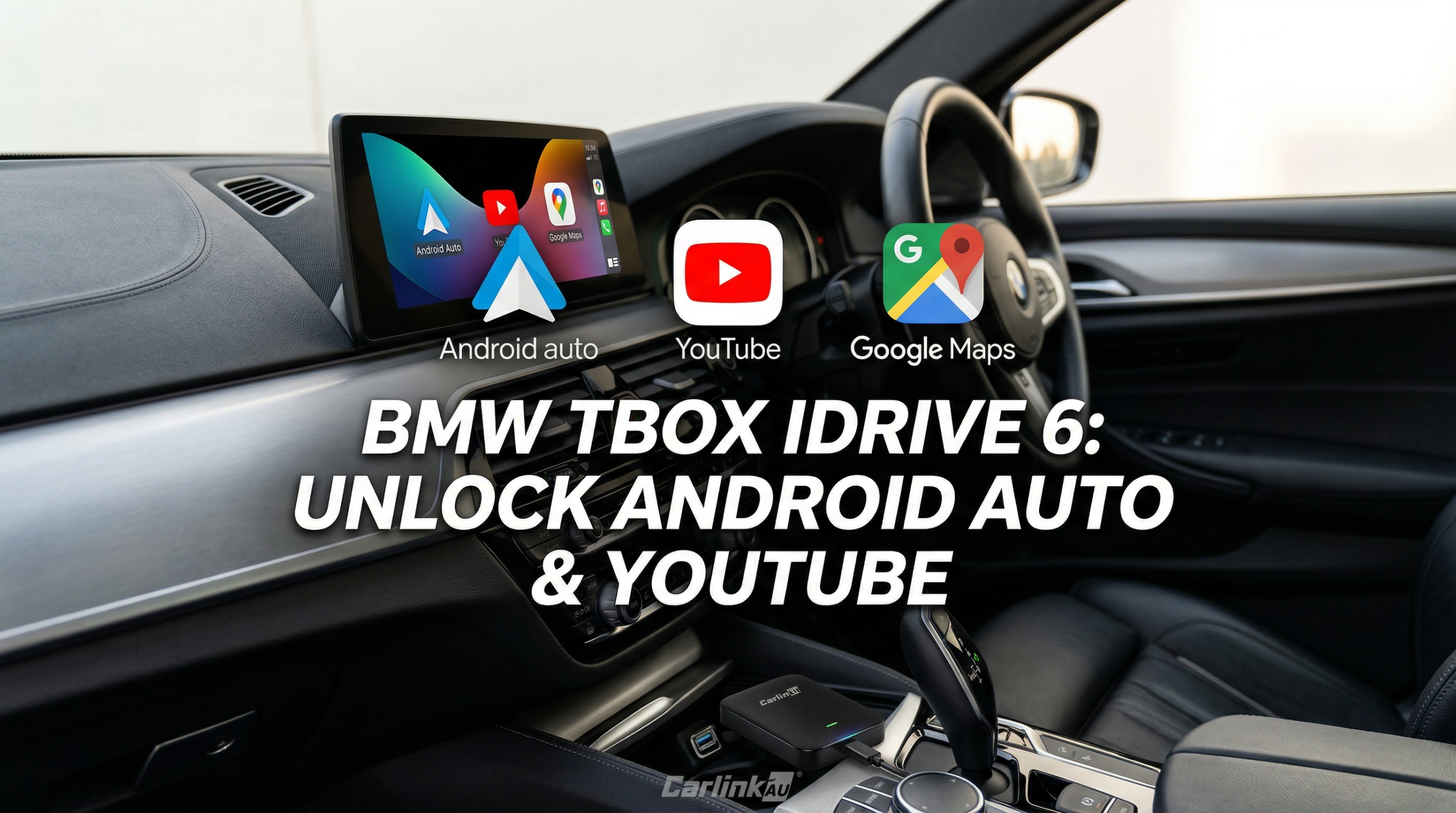
Your BMW looks great. But the factory screen? It's stuck in the past.
No YouTube. No Google Maps. No Android Auto.
The Carlinkit MMB Box fixes all of that — and it takes less time to set up than making a coffee. ☕
What Is BMW iDrive 6 — And Why Does It Fall Short?
iDrive 6 is BMW's NBT EVO system. It's smooth and premium, but it was built before streaming was a standard feature.
Here's what you're missing out on every single drive:
- No YouTube or Netflix on your screen
- No Google Maps or Waze running natively
- No Google Play Store access
- No full wireless Android Auto support
The hardware can handle it. The software just won't let it. Until now.
What Is the Carlinkit BMW TBox (MMB Box)?
It's a small Android AI box — about the size of a USB drive — that plugs straight into your BMW's CarPlay USB port.
Once it's in, your screen runs full Android 13. That means Google Maps, YouTube, Netflix, and every app on the Play Store — right on your factory display.
The best part? Your original iDrive stays completely untouched. One tap switches you back anytime.
Requirement: Your BMW must have factory wireless CarPlay active. This is the only, but mandatory, requirement.
Pros and Cons
Advantages
- No head unit replacement needed
- Keeps all original iDrive features
- Access to every Android app
- Works without your phone (with SIM)
- Easy plug-and-play setup
- Cheaper than a hardware swap
Limitations
- Requires factory wireless CarPlay
- App compatibility can vary
- Requires internet (hotspot or SIM)
- Check local laws for in-motion streaming
Does My BMW Have Wireless CarPlay? How to Check
This is the question we get asked most often — check this before spending a cent.
Go to iDrive Settings → Connected Devices and look for a wireless Apple CarPlay option.
Check your owner's manual — search for "Wireless CarPlay" in the index.
Contact Carlinkit BMW support — share your model, year, and VIN for confirmation.
How to Set Up the MMB Box — Step by Step
Takes less time than setting up a new phone. 📱
Plug it in
Connect the MMB Box to your BMW's factory CarPlay USB port.
Let it boot
The device starts up automatically. No buttons required.
Watch the switch
Your iDrive display transitions to Android 13 instantly.
Get connected
Use your phone's mobile hotspot or insert a nano SIM card for 4G.
Open your apps
YouTube, Netflix, and Google Maps are ready to go in the Play Store.
Switch back anytime
Tap the floating toggle to go back to original iDrive instantly. ✅
Comparison: What Do You Actually Unlock?
| FEATURE | STOCK IDRIVE 6 | WITH MMB BOX |
|---|---|---|
| Wireless Android Auto | ✘ | ✔ |
| YouTube on display | ✘ | ✔ |
| Netflix / Prime Video | ✘ | ✔ |
| Google Maps / Waze Native | ✘ | ✔ |
| Google Play Store | ✘ | ✔ |
| SIM Card / 4G Support | ✘ | ✔ |
| Split-screen Navigation | ✘ | ✔ |
| Original iDrive Preserved | ✔ | ✔ |
Frequently Asked Questions
Ready to Upgrade Your BMW?
Android Auto, YouTube, Netflix and more — on the screen you already have.