blog

How to Check if Your BMW Has Apple CarPlay

Many BMW drivers are interested in using Apple CarPlay on their vehicles but are unsure if their BMW model is compatible with the feature. Apple CarPlay allows drivers to connect their iPhones to their BMW’s infotainment system and access many of their iPhone’s features, such as music, maps, and messaging, through the car’s screen and controls.


Key Takeaways


    • Identifying Apple CarPlay compatibility on a BMW can be tricky, but checking the iDrive system’s software version, looking for the Apple CarPlay icon on the infotainment screen, or consulting the BMW owner’s manual or website can help.
    • If a BMW does not have Apple CarPlay compatibility, drivers can explore alternative ways to use similar features, such as BMW’s ConnectedDrive system or third-party wireless systems that can add wireless CarPlay or Android Auto to the car’s infotainment system.
    • It’s important to verify the compatibility and installation of any third-party systems carefully to ensure their safety and functionality in the car.


Identifying Apple CarPlay Compatibility

If you’re wondering if your BMW has Apple CarPlay, there are a few ways to check. Here are some methods to identify Apple CarPlay compatibility:


Check Vehicle Specifications

The easiest way to determine if your BMW has Apple CarPlay is to check the vehicle specifications. Look for the CarPlay Preparation option (S6CPA) in the list of features. If your vehicle has this option, it means that it is compatible with Apple CarPlay. You can also try inputting your VIN at a free online BMW VIN decoder to check if your car has the S6CPA option.


Look for the CarPlay Logo

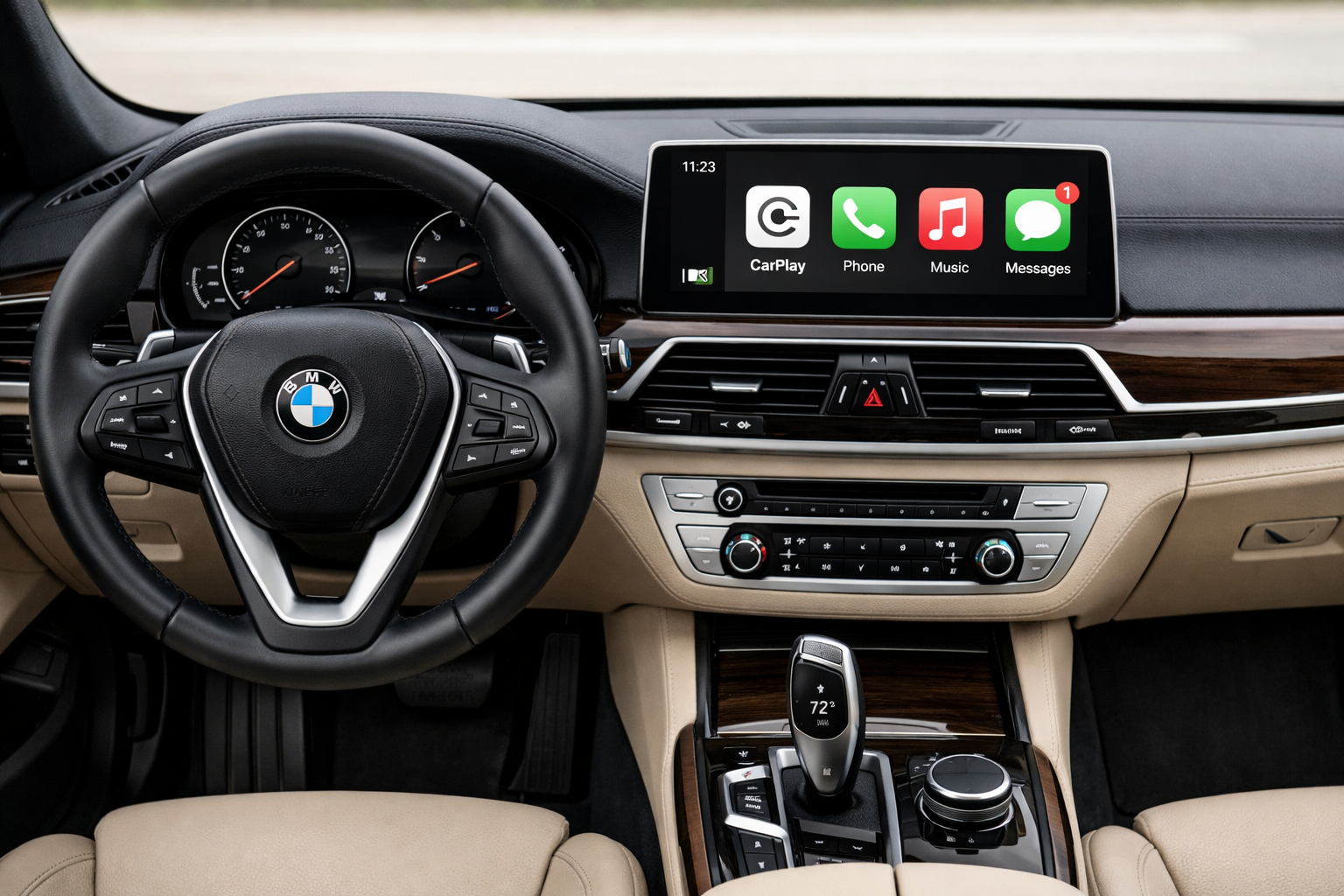
Another way to identify Apple CarPlay compatibility is to look for the CarPlay logo on your BMW’s infotainment system. The CarPlay logo is a white square with a black outline and a black apple in the center. If you see this logo, it means that your BMW has Apple CarPlay.


Use the iDrive System

You can also check for Apple CarPlay compatibility using the iDrive system. Go to the “Com” menu in iDrive, then select “Mobile devices”. On the following screen, select “+ New device”. If your BMW is compatible with Apple CarPlay, it should appear as an option on the list of devices.

In conclusion, there are several ways to identify Apple CarPlay compatibility in your BMW. Check the vehicle specifications, look for the CarPlay logo, or use the iDrive system to confirm if your BMW is compatible with Apple CarPlay.


Exploring Alternative Ways to Verify


If a BMW owner is still unsure whether their car has Apple CarPlay, there are several alternative ways to verify. Here are three options to consider:


Consult the Owner’s Manual

The BMW owner’s manual is a valuable resource for learning about the car’s features, including whether it has Apple CarPlay. The manual will also provide instructions on how to use the system, which can be helpful for first-time users. If the owner’s manual is not readily available, it can usually be found online through BMW’s website or other third-party sources.


Contact BMW Support

Another option is to contact BMW support directly. BMW has a customer support team that can answer questions about the car’s features, including whether it has Apple CarPlay. The support team can also provide instructions on how to use the system and troubleshoot any issues that may arise. BMW support can be reached through their website, by phone, or through their social media channels.


Visit a BMW Dealership

If the owner is still unsure whether their car has Apple CarPlay, they can visit a BMW dealership. The dealership can verify whether the car has Apple CarPlay and provide instructions on how to use the system. The dealership may also be able to install the system if the car does not have it already. It is recommended to call ahead and schedule an appointment to ensure that a representative is available to assist.

Overall, there are several alternative ways to verify whether a BMW has Apple CarPlay. By consulting the owner’s manual, contacting BMW support, or visiting a BMW dealership, owners can confirm whether their car has the system and learn how to use it effectively.


What’s Next After Checking Your CarPlay Status?

Once you know whether your BMW has Apple CarPlay — or not — here’s what most owners do next:

If your BMW already has wireless CarPlay (2018–2025 models): You’re one step away from unlocking the full experience. The BMW TBox plugs directly into your existing CarPlay USB port and adds wireless Android Auto, YouTube, Netflix, and Google Maps — all on your factory iDrive screen. No coding, no mechanic, no modifications to your car.

If your BMW only has wired CarPlay, you’ll first need a Decoder to activate wireless CarPlay, then the TBox works on top of that.

If your BMW has no CarPlay at all (pre-2017 or entry trim): A full Android Screen replacement gives you CarPlay, Android Auto, and a larger display — though it requires removing the center console.


🚗 Already Have Wireless CarPlay? Here’s the Most Popular Upgrade

BMW TBox (MMB Multimedia Android iOS Box) Designed exclusively for BMW 2018–2025 with factory CarPlay

✔ Wireless Android Auto + CarPlay — no cables ✔ YouTube, Netflix, Spotify on your factory screen ✔ Zero coding · Plug-and-play in 15 minutes ✔ All original iDrive functions stay intact ✔ 2-year warranty · 30-day money-back guarantee

Check if the TBox fits your BMW model →

Not sure about your setup? Send us your VIN and we’ll confirm compatibility before you order. Contact us →


🔧 No CarPlay Yet? Start Here


Your Situation Recommended Solution
Wired CarPlay only Decoder Module →
No CarPlay at all (NBT/CIC system) Decoder Module →
Want a larger touchscreen + full Android Android Screen →
Already have Wireless CarPlay ✓ BMW TBox →


Frequently Asked Questions


What steps are involved in connecting my BMW to Apple CarPlay?

To connect your BMW to Apple CarPlay, you need to follow these steps:


    1. Make sure your BMW has the CarPlay Preparation option (S6CPA) by checking your VIN with a free online BMW VIN decoder.
    2. Connect your iPhone to your BMW via Bluetooth or USB.
    3. Accept the prompt on your iPhone to allow CarPlay to access your BMW.
    4. Select the CarPlay icon on your BMW’s iDrive screen.


How can I activate Apple CarPlay in my BMW vehicle?

Apple CarPlay can be activated by a BMW dealership or other party using specific coding software designed for BMWs. The native Apple CarPlay interface can be used in any vehicle that has the CarPlay Preparation option (S6CPA), provided that it has been activated.


What is the cost associated with activating Apple CarPlay in a BMW?

The cost of activating Apple CarPlay in a BMW varies depending on the dealer and region. It is recommended that you contact your local BMW dealership for more information.


How can I determine which version of iDrive my BMW is equipped with?

To determine which version of iDrive your BMW is equipped with, follow these steps:


    1. Press the iDrive knob down to enter the main menu.
    2. Select “Settings.”
    3. Select “Software Update.”
    4. Select “Show Current Version.”


From what year did BMW start offering Apple CarPlay in their vehicles?

BMW started offering Apple CarPlay in their vehicles from the 2017 model year. However, not all BMW models from 2017 and later are equipped with CarPlay Preparation (S6CPA) as standard.


What should I do if Apple CarPlay isn’t working in my BMW?

If Apple CarPlay isn’t working in your BMW, try the following:


    1. Make sure your iPhone is running the latest version of iOS.
    2. Make sure your BMW is running the latest version of iDrive.
    3. Check that your iPhone is connected to your BMW via Bluetooth or USB.
    4. Check that CarPlay is enabled in your BMW’s settings.
    5. Restart both your iPhone and BMW.
    6. If all else fails, contact your local BMW dealership for assistance.


My BMW has CarPlay — can I also get Android Auto without replacing the screen?

Yes. If your BMW has wireless Apple CarPlay (most 2018–2025 models), the BMW TBox plugs into the same USB port and runs full Android 13 alongside CarPlay. You don’t lose any factory features. The two systems toggle with one tap on screen.

If you only have wired CarPlay, you’ll need a Decoder first to enable wireless mode before the TBox will work.

See which solution fits your BMW →


Leave a Reply